
Equipment Updates
Learn how and why to swap your device
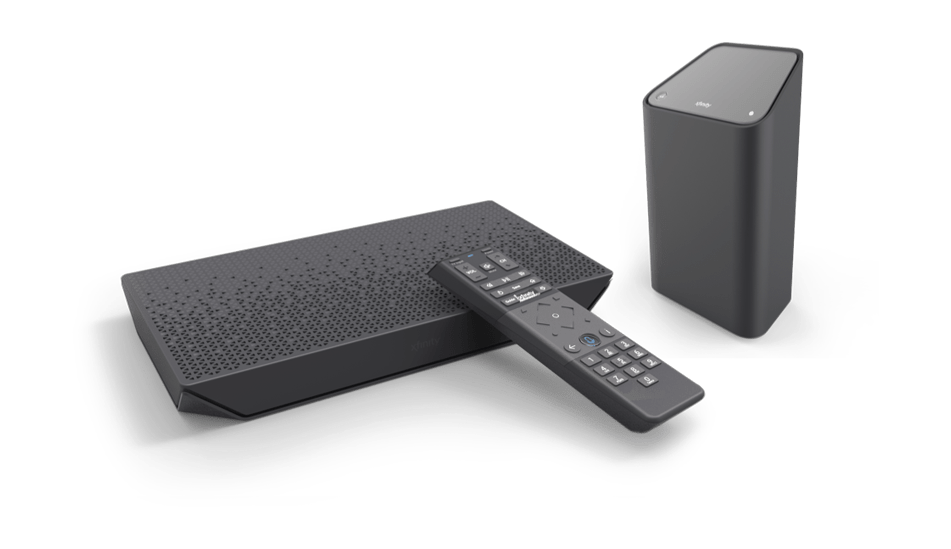
At Xfinity, we continuously update our network and technology, and over time your TV boxes and modems need to be replaced to be compatible with those improvements. Replacing devices ensures you’re getting the most from your service, including the speed, coverage and control of xFi and a one-of-a-kind entertainment experience with X1. With your new equipment, you can enjoy everything X1 and xFi have to offer.
Benefits of Xfinity X1:
- Control your TV with the X1 Voice Remote
- Conveniently stream all your favorites apps in one place, like Netflix®, YouTube, Hulu and Pandora®
- Personalized recommendations on what to watch
- A downloadable DVR library you can take on the go
Benefits of Xfinity xFi:
- Enjoy reliably fast speeds and consistent coverage with the xFi Gateway, a modem and router in one
- Protect your home network and all connected devices from hackers and malware with xFi's Advanced Security
- Enhanced features like parental controls, easy troubleshooting and network personalization
- 24/7 tech support and proactive device upgrades
Swapping your equipment is quick and easy. Just order through Xfinity My Account and we'll ship your new device at no extra cost. If your equipment is already on its way, all you'll need to do is activate it once it arrives.
Ready to get started?
Update your equipment now.
Learn how to self-install your devices with the videos below:
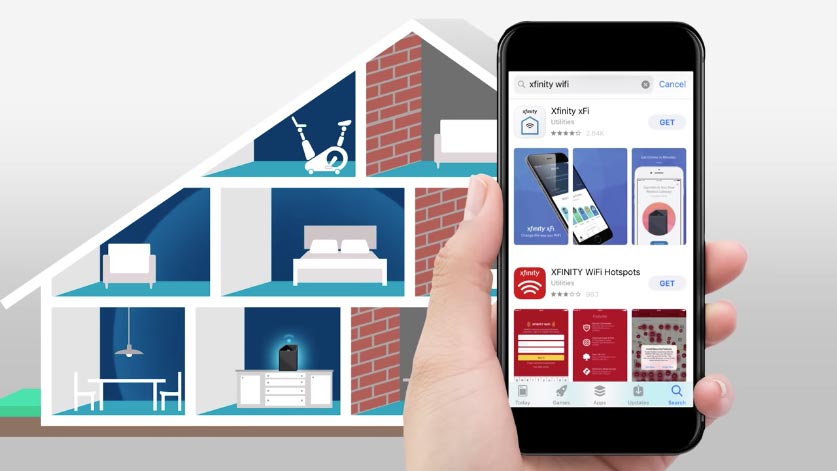
Xfinity Internet for xFi Gateways
Xfinity Internet and/or Voice
Xfinity xFi Pods
Xfinity X1
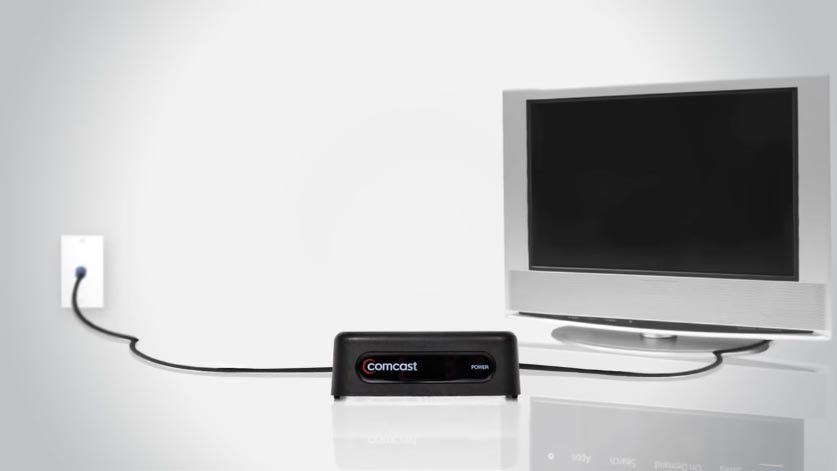
TV Adapter
Equipment Update FAQs
Why do I need to replace my equipment?
There are several reasons you may need to get a newer device. Your current device may be defective, or unable to deliver the latest network and software improvements, including faster Internet speeds with xFi or a one-of-a-kind TV experience from X1. Or your device may not be able to deliver all the content and channels included with your service. No matter the reason for your new device, we'll ship it to you at no extra cost.
Are you sure I won't see any additional charges on my bill?
Yes. We want to give every customer the best experience possible, and we're committed to doing just that. Your Xfinity bill will not change. Once your new device is up and running, be sure to return your old equipment to avoid any additional charges.
How do I exchange leased equipment?
Head to Xfinity My Account and select the device you need to exchange. Then we’ll send over your new device, along with a package to return your old equipment. There’s no extra cost to swap, and we’ll take care of the shipping and handling.
How do I replace a modem I own
If you’d like to purchase another device, visit My Device Info to find a list of compatible devices. To get the most from your current service, you can also lease an Xfinity modem from Xfinity My Account that will stay-up-to-date with software and network improvements. Your new modem will also give you access to Xfinity xFi for ultimate control of your in-home WiFi.
What do I do once my new equipment arrives?
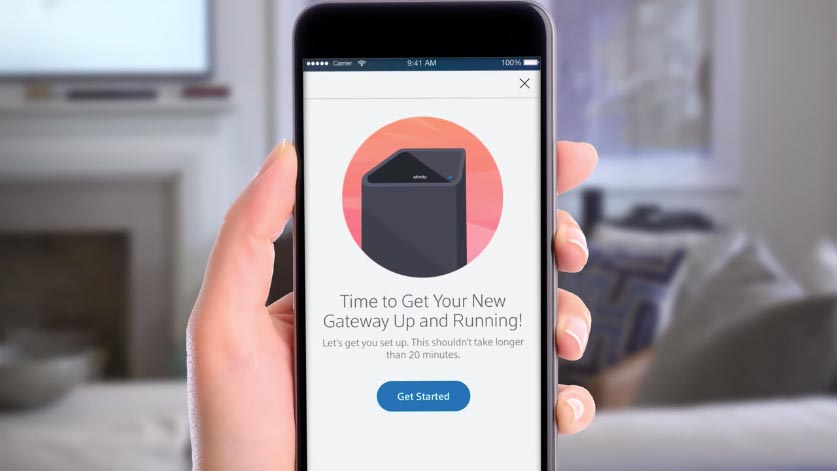
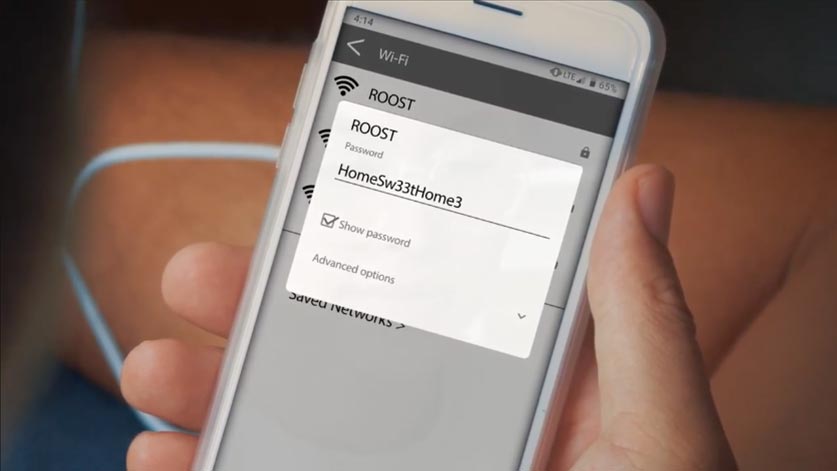
You'll need to activate your device to start enjoying your improved service. Each device will come with activation instructions. Or you can find a series of helpful videos on this page. Just scroll up to see them.
Once it's up and running, be sure to return your old equipment to avoid any additional charges. You can mail your old equipment or drop it off at any Xfinity store. Click here for more detailed return instructions.
How do I install my new equipment?
Getting your new devices ready to use is easy. Each device will come with instructions for installation and activation or you can visit our support page for helpful videos and guides.
I have more than one TV box – how do I know which one(s) need to be replaced?
Head to Xfinity My Account to view a list of your Xfinity devices and see which one(s) need to be replaced.
Will I lose my DVR recordings?
If you are swapping a device with DVR capability, there is a chance you will lose your recordings. If you are concerned about losing access to your recordings, click here to learn more about your options.
I have received two devices (TV box and Gatway), does it matter which I install first?
Yes. In order for your equipment installation to work properly, please be sure to install your new Gateway first. If you try to install your TV box first, your devices will not work properly.
What do I need to install my new TV box?
Your new device may require an HDMI connection that’s different from the connector you use in your home today. Visit http://www.xfinity.com/connectiontypes for compatible connectors you can use with your updated TV Box.
How quickly will my device be shipped?
Your new device will be shipped within 3-5 business days.
Why doesn't my device look like the picture above?
Not all customers will receive the same equipment. The device that was sent to you was selected to perform optimally for your Xfinity services and may vary from the photos on this site or any other communications.
How do I return my equipment?
There are four ways you can return your old equipment.
Initiate your return online (recommended)
- Sign in and visit the Equipment Return page. (Note: You must have an active Xfinity profile to process your return online. If you don't, you can return your device at a UPS Store near you). Already submitted a return request? You can track your return at the Pending Return Status page.
- Check off the device(s) you'd like to return and select Continue. When returning your device(s), check the serial number on the device to ensure that it matches your selection. Note: If you're returning a TV Box, you can click Identify Device, which will send a signal to that specific TV and display an on-screen message to let you know that this is the correct TV Box.
- Choose a reason for return and press Continue.
- Select a return option, follow the listed instructions, and press Confirm.
Stop by a local UPS Store
- Visit theupsstore.com/tools/find-a-store to find a UPS Store near you.
- You may either bring your equipment to the store and a UPS representative will pack and ship your equipment back to us, or you may package the equipment yourself using a cardboard box and the prepaid UPS shipping label you printed at home.
- If a UPS Store representative packages the equipment for you, you will receive a physical receipt with your tracking number so that you can track the progress of your return at xfinity.com/returns or on UPS.com. Otherwise, you may reference the tracking number on the return label to monitor your package. Please allow up to two weeks for the return to process and your account to reflect these changes.
If you have an email address on file, you will also receive a confirmation email letting you know that the equipment was received and the date that the return was processed. Update your email address.
Visit us at a Comcast Service Center or Xfinity Store
- Find a Comcast Service Center or Xfinity Store location near you.
- Drop off your equipment at any Comcast Service Center or Xfinity Store. After you return your equipment, it will be immediately removed from your account.
- Our team at the Xfinity Store will provide you with a receipt confirming your return details.
Send your equipment back with a prepaid UPS shipping label
- Once you have followed the instructions online at xfinity.com/returns and confirmed the device(s) you are returning, choose UPS Prepaid Shipping. Select Print Shipping Label to print the label for your package.
- Put the equipment being returned into its original box and place your UPS prepaid shipping label on the outside. Keep the top portion of the label with the tracking number included, as this will be your receipt.
- Drop the package off anywhere that UPS shipments are accepted. Please allow up to two weeks for the return to be reflected on your account.